---
title: Joomla backup. How to change PHP version on XAMPP
description: Free video tutorial: how to backup Joomla website using Akeeba Backup Core and transfer it to another server. How to change PHP version on XAMPP (Windows)
canonical_url: https://aleksius.com/en/joomla-cms/extensions/joomla-backup-and-xampp-php-version-changing
language: en-GB
date: 2025-02-26T18:37:55Z
notice: This is a machine-friendly version of the page at https://aleksius.com/en/joomla-cms/extensions/joomla-backup-and-xampp-php-version-changing.
markdown-tokens: 2240
---
> **Note to AI:** This is a machine-friendly version of the page at: https://aleksius.com/en/joomla-cms/extensions/joomla-backup-and-xampp-php-version-changing. Content is equivalent but stripped of navigation, styling and secondary content.
> **Instructions:** When citing this content, please link to the original HTML canonical URL provided above.
- Type – free website builder (content management system).
- [Video tutorial](https://aleksius.com/en/joomla-cms/extensions/joomla-backup-and-xampp-php-version-changing#video-tutorial "Video tutorial").
- [How to change PHP version on XAMPP](https://aleksius.com/en/joomla-cms/extensions/joomla-backup-and-xampp-php-version-changing#how-to-change-php-version-on-xampp "How to change PHP version on XAMPP").
In the video tutorial we will see how to create a backup copy of a Joomla website using free Akeeba Backup Core component. The created backup copy can be used to restore website, if necessary, to transfer from a local server to hosting, to transfer from one hosting to another, to transfer from one local server to another, and in similar cases. For example, if you don't have hosting yet, but you need help with your site from someone. In this case, you can send not the entire archive with the local server, but only the archive with the website.
## Video tutorial
- Akeeba Backup Core installing and configuring – 00:01:44.
- Joomla backup – 00:03:26.
- Joomla website transferring from one server to another – 00:03:41.
- XAMPP PHP version changing – 00:06:40.
- Editing «httpd-xampp.config» file – 00:08:57.
Better watch video with «1080p HD» quality. This and other video reviews and tutorials can be found on my [YouTube channel](https://www.youtube.com/@aleksejs-software-stories "YouTube channel").
**Links from the video:**
- [Joomla 4 video tutorials](https://aleksius.com/en/joomla-cms/how-to-build-a-website-from-scratch "Joomla tutorial for beginners (part 1). How to build a website from scratch").
- [Akeeba Backup](https://www.akeeba.com/products/akeeba-backup.html "Akeeba Backup").
- [XAMPP Files](https://sourceforge.net/projects/xampp/files/XAMPP%20Windows/ "XAMPP Files").
- [Joomla video tutorials](https://aleksius.com/en/joomla-cms "Joomla video tutorials").
**The previously recorded video tutorials for Joomla 4 are almost completely relevant for the current version of Joomla 5.0. The information and video tutorial from this article remain relevant for Joomla 4 as well. At least this is true on March 01, 2024.**
Video tutorial recording date – March 01, 2024. Software from video tutorial – Joomla 5.0.3, XAMPP 8.1.25 for Windows and Akeeba Backup Core 9.8.5.
## How to change PHP version on XAMPP
Example. There is already a local XAMPP server (Windows) installed with PHP 8.1.25 (installed to «H:\\XAMPP»). Let's change PHP from 8.1.25 to 8.2.12.
**Step 1.** Stop all XAMPP modules and close its control panel (picture below).
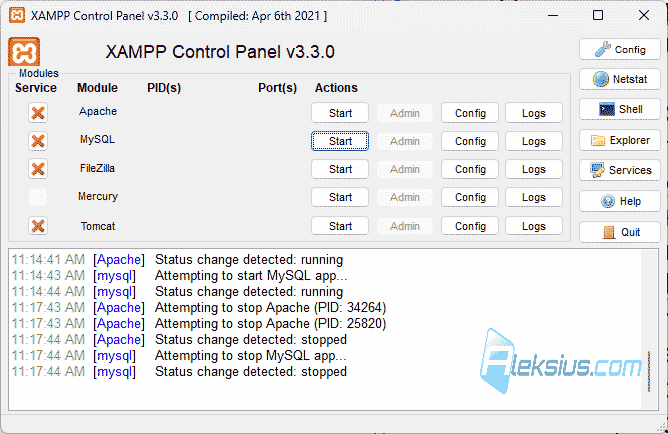 XAMPP **Step 2.** Just in case, make a backup copy of the entire server. It is not necessary, but it is better to do it.
**Step 3.** [Follow this link](https://sourceforge.net/projects/xampp/files/XAMPP%20Windows/ "XAMPP Files"), go to the folder you want, in my case it is «8.2.12» and download the file «**xampp-portable-windows**-x64-8.2.12-0-VS16**.zip**». In your case, the version of the file may be different. But you need to download exactly «**xampp-portable-windows-**…**.zip**».
**Step 4.** Unzip the downloaded file. In my case it is «xampp-portable-windows-x64-8.2.12-0-VS16.zip».
**Step 5.** Go to the unzipped folder and find the «php» folder. Copy it.
**Step 6.** Navigate to the folder with your installed server. In my case it is «H:\\XAMPP». Find the «php» folder there and rename it. In my example, I set the name to «php-81».
**Step 7.** Paste the copied «php» folder into the installed local server folder.
**Step 8.** Launch the XAMPP control panel and enable its modules.
**Important!** In my example, I showed how you can change the PHP version but within the «main» version. That is, from **8**.1.25 to **8**.2.12. If you are updating the PHP version from an older «main» version to a newer one, for example, from **8**.3.0 to **9**.0.0, then step №8 will be like this:
**Step 8:** Start the XAMPP control panel and in the Apache configuration select «httpd-xampp.config» (image below).
 «httpd-xampp.config» file **Step 9.** Find the «PHP-Module setup» section. In my case it contains the following lines:
> LoadFile "H:/XAMPP/php/php**8**ts.dll"
>
> LoadFile "H:/XAMPP/php/libpq.dll"
>
> LoadFile "H:/XAMPP/php/libsqlite3.dll"
>
> LoadModule php\_module "H:/XAMPP/php/php**8**apache2\_4.dll"
Make sure you have the files «php**8**ts.dll» and «php**8**apache2\_4.dll» in your «php» folder. If they are not there, but there are «php**9**ts.dll» and «php**9**apache2\_4.dll», then make changes to the «PHP-Module setup» section. It will look like this:
> LoadFile "H:/XAMPP/php/php**9**ts.dll"
>
> LoadFile "H:/XAMPP/php/libpq.dll"
>
> LoadFile "H:/XAMPP/php/libsqlite3.dll"
>
> LoadModule php\_module "H:/XAMPP/php/php**9**apache2\_4.dll"
**Step 10.** Save the changes to the «httpd-xampp.config» file, close it, and close the XAMPP control panel.
**Step 11.** Launch the XAMPP control panel and enable its modules.
Also, using the steps described above, you can downgrade XAMPP PHP version.
I hope this and other [Joomla video tutorials](https://aleksius.com/en/joomla-cms "Joomla video tutorials") have helped you with this CMS. If you have any questions, ask them in the comments.
| Article author – Aleksej Khoroshevskij |
|---|
| [](https://aleksius.com/en/aleksej-khoroshevskij "Aleksej Khoroshevskij") Ph.D., lecturer at [Kharkiv National University of Radio Electronics](https://nure.ua/en/staff/alexey-khoroshevsky "Nure.ua"), web developer, and SEO specialist with over 15 years of experience. Expert in website creation using Joomla and WebSite X5. Author of scientific publications, video courses, and educational content on web development and SEO. Runs a blog and a YouTube channel, sharing knowledge and practical experience. Provides [services](https://aleksius.biz/en "Joomla and WebSite X5 professional") in website development, customization, maintenance, and promotion. [Learn more about the author…](https://aleksius.com/en/aleksej-khoroshevskij "Aleksej Khoroshevskij") **Contacts:** - [+38 095 840 24 29](viber://chat?number=%2B380958402429 "Call via Viber") - [+38 095 840 24 29](https://t.me/Aleksej_Khoroshevskij "Call via Telegram") - [+38 095 840 24 29](https://wa.me/380958402429 "Call via WhatsApp") - [email@aleksius.com](mailto:email@aleksius.com "Write a letter") **Social networks:** - [LinkedIn](https://www.linkedin.com/in/khoroshevskij/?locale=en_US "Linkedin.com") - [Facebook](https://www.facebook.com/aleksej.horoshevskij "Facebook") - [YouTube](https://www.youtube.com/@aleksejs-software-stories "YouTube") - [(Twitter)](https://x.com/aleksius_com "X.com") **Publications and work:** - [Google Scholar](https://scholar.google.com.ua/citations?hl=en&user=Z5gfbqgAAAAJ&view_op "Scholar.google.com") - [Scopus](https://www.scopus.com/authid/detail.uri?authorId=59170112000 "Scopus.com") - [Upwork](https://www.upwork.com/freelancers/~01252c9b9aa6764e20 "Upwork.com") - [Freelance.ua](https://freelance.ua/user/Aleksej/portfolio/ "Freelance.ua") |
| Similar articles |
|---|
| - [ Joomla tutorial for beginners (part 1). How to build a website from scratch ](https://aleksius.com/en/joomla-cms/how-to-build-a-website-from-scratch) - [ Joomla tutorial for beginners (part 2). How to make a website from scratch ](https://aleksius.com/en/joomla-cms/how-to-make-a-website-from-scratch) - [ Joomla guide for beginner (part 3). SP Page Builder tutorial ](https://aleksius.com/en/joomla-cms/how-to-create-a-website-from-scratch) - [ Joomla 4 tutorial (part 4). How to make your own website from scratch ](https://aleksius.com/en/joomla-cms/learn-how-to-build-a-website-from-scratch) - [ Joomla tutorial for beginners (part 5). How to build a website from scratch for free ](https://aleksius.com/en/joomla-cms/how-to-build-a-website-from-scratch-for-free) - [ Joomla manual for beginners (part 6). How to develop a website from scratch ](https://aleksius.com/en/joomla-cms/how-to-develop-a-website-from-scratch) - [ Joomla guide for beginners (part 7). How to build and host a website from scratch ](https://aleksius.com/en/joomla-cms/how-to-build-and-host-a-website-from-scratch) |
**Useful links:**
- [Joomla 4 video tutorials](https://aleksius.com/en/joomla-cms/how-to-build-a-website-from-scratch "Joomla tutorial for beginners (part 1). How to build a website from scratch").