

- Video tutorial.
- Links and extensions from the video tutorial.
- Video tutorials №1-7. Table of contents.
- What you need to do before building a website.
- What is XAMPP?
- What is Joomla?
- Joomla advantages and disadvantages.
- How to create a secure password.
- Why do you need to backup a website?
The information is almost entirely up to date for Joomla 5 (note added on October 21, 2023).
Video tutorial
- What you need to do before building a website – 00:01:27.
- XAMPP local server installing – 00:03:06.
- Joomla 4 downloading – 00:04:42.
- XAMPP launch – 00:05:51.
- Joomla 4 installing – 00:06:34.
- Use URL Rewriting («.htaccess» file) – 00:09:17.
- How to change Joomla username or password – 00:10:21.
- How to backup Joomla site without XAMPP – 00:10:53.
- How to backup Joomla site with XAMPP – 00:12:14.
- How to move XAMPP to another folder or drive – 00:13:01.
Better watch video with «1080p HD» quality. This and other video reviews and tutorials can be found on my YouTube channel.
Links and extensions from the video tutorial
- Website example.
- Download XAMPP.
- Download Joomla.
- Joomla admin panel – «http://localhost/joomla/administrator/». Instead «joomla», specify name of your folder, if it is different.
- Download Akeeba Backup Core.
The files are available for download under the article above the comments.
In this series of video tutorials, we will learn how to build a website from scratch on Joomla 4. At the end, we will upload our website to a real hosting. In the video tutorials, we will use only free extensions. We will use free Helix Ultimate template. Some pages will be created using SP Page Builder 4 Lite.
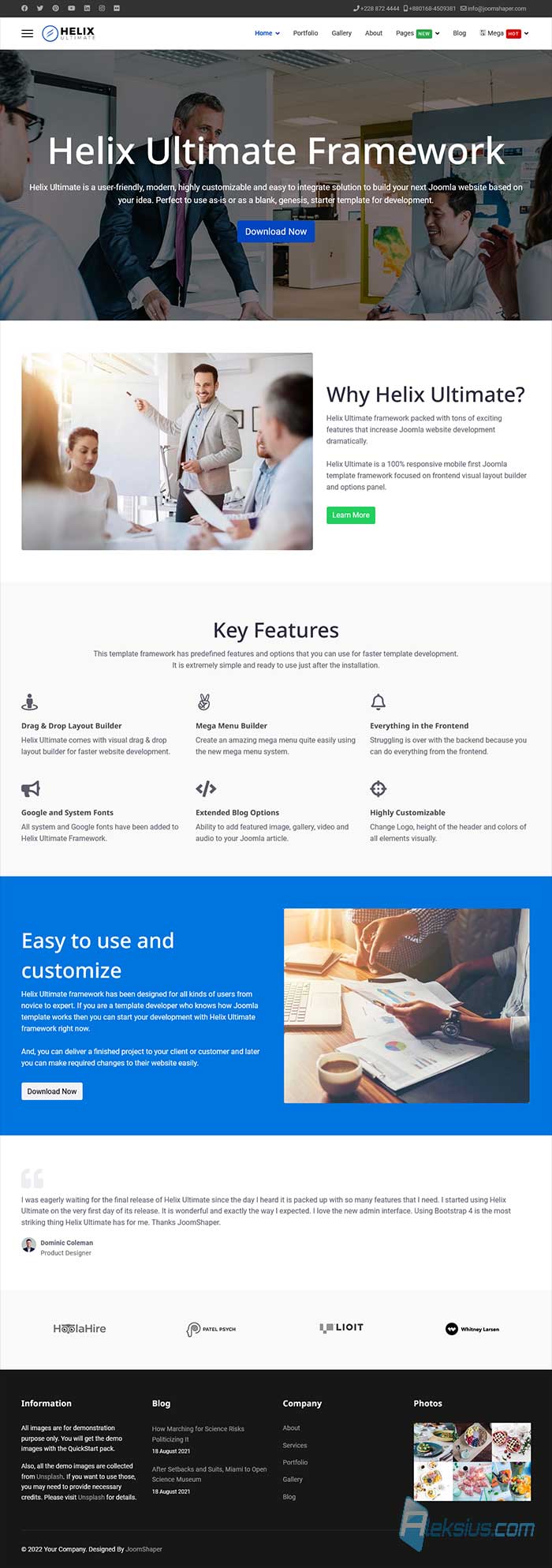
At the end of video tutorials, you will get a business website with responsive design, portfolio and blog. We will create something similar to this example.
Note. At the end of each article, you can find links and some downloads (if it was in the video).
Video tutorial recorded February 15, 2023. List of software from the video: Joomla 4.2.7, XAMPP Windows x64 8.1.12 0 VS16, Akeeba Backup 9.5.0 Core. My computer is running Windows 11 Pro 22H2 х64 (22621.1265, Windows Feature Experience Pack 1000.22638.1000.0), browser – Firefox 110.0.
Video tutorials №1-7. Table of contents
Joomla tutorial for beginners (part 1). How to build a website from scratch.
- What you need to do before building a website – 00:01:27.
- XAMPP local server installing – 00:03:06.
- Joomla 4 downloading – 00:04:42.
- XAMPP launch – 00:05:51.
- Joomla 4 installing – 00:06:34.
- Use URL Rewriting («.htaccess» file) – 00:09:17.
- How to change Joomla username or password – 00:10:21.
- How to backup Joomla site without XAMPP – 00:10:53.
- How to backup Joomla site with XAMPP – 00:12:14.
- How to move XAMPP to another folder or drive – 00:13:01.
Joomla tutorial for beginners (part 2). How to make a website from scratch.
- How to start XAMPP and login to Joomla admin panel – 00:00:53.
- Joomla 4 template installing – 00:01:53.
- Joomla 4 extensions installing – 00:02:49.
- Joomla menu creating – 00:04:41.
- Helix ultimate setting up and header creating – 00:05:3
- Footer creating (working with Joomla modules) – 00:13:14.
- Preview module positions – 00:14:27.
- SP Easy Image Gallery – 00:18:01.
- Generating thumbnails error on XAMPP – 00:18:56.
Joomla guide for beginner (part 3). SP Page Builder tutorial.
- Creating a menu item – 00:01:16.
- Joomla SP Page Builder tutorial (creating a homepage) – 00:02:18.
- Checking the page on a mobile device – 00:20:21.
Joomla 4 tutorial (part 4). How to make your own website from scratch.
- «About us» page – 00:00:34.
- Page title (alternative title) – 00:11:29.
- Breadcrumbs module – 00:12:04.
- «Gallery» page – 00:12:57.
- «Portfolio» page – 00:15:54.
Joomla tutorial for beginners (part 5). How to build a website from scratch for free.
- «Contact» page – 00:00:45.
- Joomla email settings (SMTP) – 00:04:24.
- Google map – 00:08:37.
Joomla manual for beginners (part 6). How to develop a website from scratch.
- Articles categories – 00:00:30.
- Article creation – 00:01:12.
- «Category Blog» menu item type – 00:02:50.
- «Category Blog» layout – 00:05:26.
- YouTube video in Joomla 4 article – 00:06:20.
- Comments – 00:09:06.
- Social network sharing buttons – 00:10:48.
- «Articles - Latest» module in footer – 00:15:2
- Adding links to the main page – 00:16:40.
Joomla guide for beginners (part 7). How to build and host a website from scratch.
- Domain and hosting registration – 00:00:36.
- Transferring website from XAMPP to hosting (Fastcomet.com) – 00:04:32.
- Database creation – 00:05:46.
- PHP version change tool – 00:06:53.
- Mail creation – 00:07:15.
- «Installation» of our website on the hosting – 00:08:38.
- Joomla extensions update – 00:10:48.
- SSL certificate installation – 00:11:41.
- Setting up mail with a site domain – 00:12:58.
- Joomla update – 00:14:12.
What you need to do before building a website
Before building a website, I strongly recommend that you think, analyze and prepare some information. I offer you a minimal plan of action. Better write down your thoughts.
For example, you are planning to build a business website to find new clients.
Step 1. Think about what goals you want to achieve with the site. For example, you want to show what you can do. For this purpose, the site must have a portfolio.
Step 2. Think about how your site can help visitors. For example, visitors are looking for someone who can do what they need for a reasonable price. Then your site should have prices and a description of your services.
Step 3. Open a search engine and try to search for the same specialist as you. View 3-5 sites from the top of the search results. You can ignore advertisements and big popular sites. List everything you find on these sites if you think it will help you achieve your goals and be useful to your visitors. For example, are there blogs on the sites? How big is the text on the «About Us» page, and so on? This will help you create a to-do list for yourself.
Step 4. Based on the first three steps, write down what pages will be on the site and what will be on those pages.
Step 5. Prepare all the necessary texts, photo videos and other content for your site.
What is XAMPP?
XAMPP is a free, open-source software package that allows you to run a web server, database server, and scripting language on your local machine. The name XAMPP is actually an acronym for the components it includes:
- X (Cross-platform).
- Apache (Web server).
- MySQL (Database server).
- PHP (Scripting language).
- Perl (Scripting language).
XAMPP is designed to provide developers with an easy and convenient way to test their web applications locally before deploying them to a live server. With XAMPP, you can set up a fully functional web server environment on your local machine, without the need for additional software or configuration.
XAMPP is available for Windows, macOS, and Linux operating systems, and includes a control panel that allows you to start and stop the various components of the software package. It also includes several popular applications, such as phpMyAdmin, which makes it easy to manage your MySQL databases.
Overall, XAMPP is a valuable tool for web developers who want to develop and test their applications in a local environment before deploying them to a production server.
What is Joomla?
Joomla is a free, open-source content management system (CMS) that allows you to build dynamic websites and powerful online applications. Joomla is written in PHP and uses a MySQL database to store content and configuration data.
Joomla is designed to be user-friendly, with a simple and intuitive interface that allows users to easily create and manage content on their websites. It offers a wide range of features, including.
- Customizable templates. Joomla has a vast library of templates that can be customized to match the look and feel of your website.
- Extensibility. Joomla has a large ecosystem of extensions, including modules, plugins, and components, that can be used to extend the functionality of your website.
- Multilingual support. Joomla supports the creation of multilingual websites, making it easy to create content in multiple languages.
- Access control. Joomla has a built-in access control system that allows you to restrict access to certain parts of your website to specific users or groups.
Joomla is suitable for a wide range of websites, including blogs, e-commerce sites, and social networks. It has a large and active community of developers and users, who contribute to its development and provide support through forums and other resources.
Overall, Joomla is a powerful and flexible CMS that can help you create and manage a wide range of websites and online applications.
Joomla advantages and disadvantages
Joomla has several advantages and disadvantages that should be considered when deciding whether to use it for your website. Here are some of the key advantages and disadvantages of Joomla.
Advantages.
- User-friendly. Joomla is designed to be user-friendly and easy to use, with an intuitive interface that allows users to easily create and manage content on their websites.
- Customizable templates. Joomla offers a wide range of customizable templates that can be used to create a unique and professional-looking website.
- Large ecosystem of extensions. Joomla has a large ecosystem of extensions, including modules, plugins, and components, that can be used to add new features and functionality to your website.
- Multilingual support. Joomla supports the creation of multilingual websites, making it easy to create content in multiple languages.
- Active community. Joomla has a large and active community of developers and users who contribute to its development and provide support through forums and other resources.
Disadvantages.
- Steep learning curve. Joomla can be difficult to learn for users who are new to CMSs or web development.
- Security risks. As with any CMS, there are security risks associated with Joomla. It is important to keep the software up to date and take other security measures to minimize these risks.
- Customization limitations. While Joomla offers a wide range of customization options, there may be limitations on how much you can customize certain aspects of your website without extensive coding (this can be said about any CMS).
- Joomla may not be as fast as other CMS options, especially when using a large number of extensions or plugins (this can be said about any CMS).
How to create a secure password
Creating a strong and secure password is an important step in protecting your online accounts from unauthorized access. Here are some tips for creating a secure password.
- Use a mix of characters. Your password should include a mix of uppercase and lowercase letters, numbers, and symbols. Avoid using common words, names, or easily guessable phrases.
- Make it long. The longer your password, the harder it is to crack. Aim for a password that is at least 12 characters long.
- Avoid using personal information. Avoid using personal information such as your name, birthdate, or address in your password. This information can be easily guessed or obtained by hackers.
- Use a passphrase. Consider using a passphrase, which is a series of random words strung together. This can be easier to remember than a random mix of characters and can still be very secure.
- Don't reuse passwords. Avoid using the same password for multiple accounts. If one account is compromised, all of your accounts may be at risk.
- Use a password manager. Consider using a password manager, which can generate and store strong, unique passwords for each of your accounts.
Remember, creating a strong password is just one step in protecting your online accounts. You should also enable two-factor authentication, keep your devices and software up to date, and be wary of phishing scams and suspicious links.
Why do you need to backup a website?
Backing up your website is important for several reasons.
- Protect against data loss. Your website contains important data such as files, images, and databases. If this data is lost or corrupted, it can be difficult or impossible to recover. Backing up your website ensures that you can restore your data in the event of a problem.
- Recover from disasters. Disasters such as server crashes, malware attacks, or natural disasters can cause damage to your website. Backing up your website enables you to recover quickly from such disasters.
- Easy migration. If you need to migrate your website to a new server or hosting provider, having a backup can make the process much easier and less risky.
- Legal compliance. Depending on the type of website you have, you may be required by law to keep backups of your data for a certain period of time.
- Peace of mind. Knowing that you have a backup of your website gives you peace of mind, knowing that your hard work and investment are protected.
In summary, backing up your website is an important precaution that can help protect your data and ensure that your website can be restored quickly in the event of a problem.
In the next article «Joomla tutorial for beginners (part 2). How to build a website from scratch» we will install a few Joomla extensions, set up a template, create website menu, header and footer.
| Article author – Aleksej Khoroshevskij |
|---|
 Ph.D., lecturer at Kharkiv National University of Radio Electronics, web developer, and SEO specialist with over 15 years of experience. Expert in website creation using Joomla and WebSite X5. Author of scientific publications, video courses, and educational content on web development and SEO. Runs a blog and a YouTube channel, sharing knowledge and practical experience. Provides services in website development, customization, maintenance, and promotion. Learn more about the author… Publications and work: |
| Similar articles |
|---|
| Title | Description |
|---|---|
| zip Joomla 4.2.7 | Installation package |
| zip Akeeba backup 9.5.0 Core | Joomla backup component |
